Viewing Results
After a request is processed, the results will be shown to the right of the request. The test flask icon colors indicate success or failure.
- Green: A response was received for Request(s) and all tests pass
- Yellow: A response was received for Request(s) but one or more tests failed
- Red: A response was not received
Click to copy test result information to the clipboard as either JSON or CSV.
Multiple Results
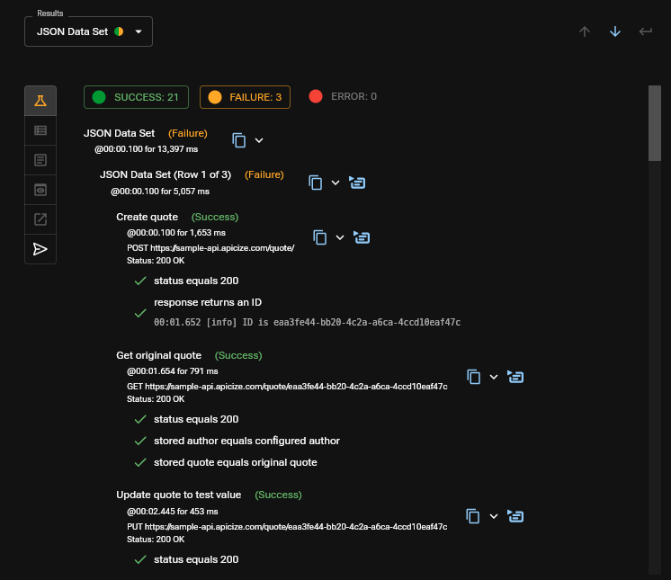
There may be multiple results when executing a Request or Request Group when using Data Sets, specifying a Number of Runs or child Requests or Request Groups A Results drop-down will appear that will assist with navigating between results. You can also use the blue navigation buttons to the right of the Results drop-down to navigate through results.
Click to view child test result information
Filtering Results
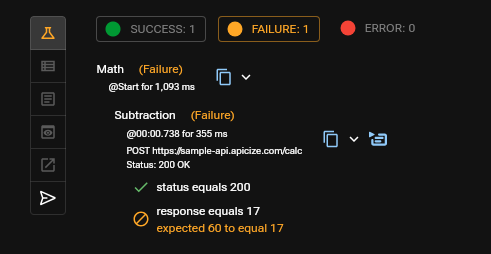
You can use the filter buttons at the top of the Results viewer to hide executed requests based upon whether they executed successfully and all tests passed, executed but tests failed and/or whether the requests could not be executed (communication error).
Clearing Results
You can clear a Request or Request Group's executed results by clicking on the Clear Execution Results button.
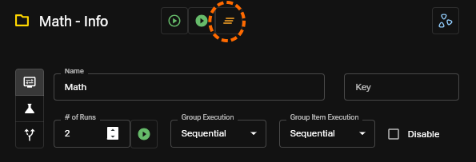
This button only clears results for executions of the selected Request or Request Group. If the selected Request or Group has results from a parent's execution, those results need to be cleared from the parent.
Request Results
Each request includes the following information panels:
- list of executed request and test results
- displays the headers returned with the response
- Displays the response body (if any) as text if the content type does not appear to be binary. If the content type does appear to be binary, then the body's content encoded as Base64 will be displayed
- For recognized content types, textual content will be displayed "pretty-fied" and images will be displayed as images
- Generates a CURL call to dispatch the command
- Details about how the request was dispatched, including any values substituted based upon the selected scenario and/or data set